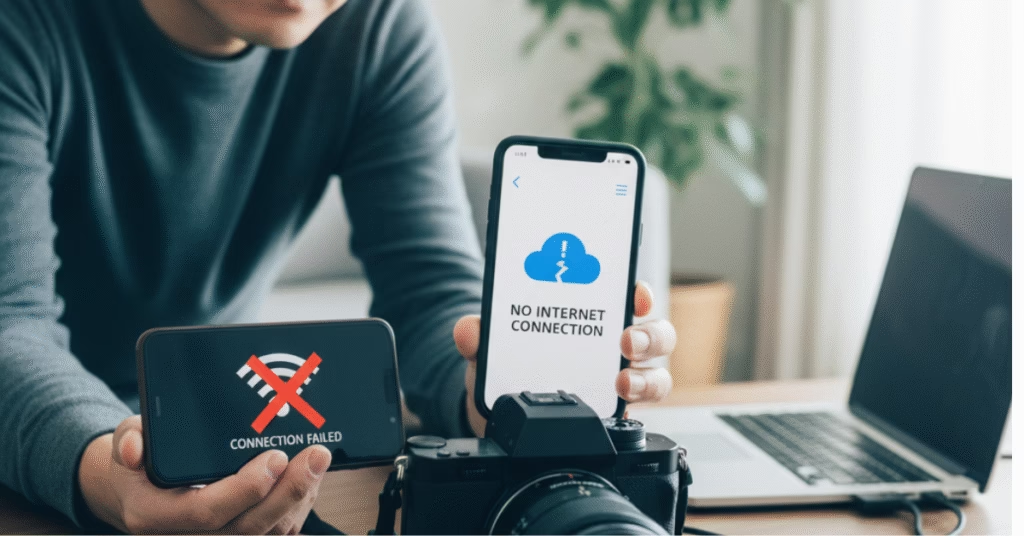
If your camera refuses to connect to Wi-Fi, you’re not alone. Many photographers face this frustrating issue right when they need to transfer photos or control their camera remotely. Don’t worry — here are quick, simple fixes that often solve the problem.
1. Check Airplane Mode or Wireless Settings
Some cameras have airplane mode turned on by default. Go into your network or Wi-Fi menu and make sure wireless communication is enabled.
2. Reset the Network Settings
Old Wi-Fi profiles can cause connection issues. Try resetting your camera’s network settings, then re-enter your Wi-Fi credentials from scratch.
3. Match Your Wi-Fi Band
If your camera only supports 2.4GHz, it won’t connect to a 5GHz network. Check your router settings or connect to the 2.4GHz network instead.
4. Update the Firmware
Outdated firmware can break connectivity features. Visit your camera manufacturer’s website, download the latest firmware, and install it via SD card or app.
5. Reinstall the Companion App
For cameras using mobile apps (like Canon Camera Connect, Nikon SnapBridge, or Sony Imaging Edge), uninstall and reinstall the app to clear any pairing bugs.
6. Use Direct Connection (Hotspot Mode)
Some cameras let you connect directly to your phone without Wi-Fi. Turn on “Direct Connection” or “Access Point Mode” and connect manually using your phone’s Wi-Fi settings.
7. Turn Off VPNs and Firewalls
If you’re using a VPN or a secured network, your connection might be blocked. Try connecting to a simple home Wi-Fi network instead.
Bonus Tip: Rename Your Wi-Fi Network
Sometimes cameras can’t read Wi-Fi names with symbols or spaces. Rename your network to something simple like MyCameraWiFi and reconnect.
Final Thoughts
A Wi-Fi issue doesn’t mean your camera is broken — it’s usually a small setting or update away from working perfectly again. If these fixes helped, save this post for later or share it with a friend who’s struggling to connect their camera.